

Comparexpert
Comparison Between Company


Exploring the Security and Optimization Features of Mackeeper
Mac users often assume that a Mac needs very little maintenance because macOS already includes several built-in security and storage tools. While Apple provides strong basic protection, everyday use can still create problems such as unwanted files, outdated applications, unnecessary startup items, adware, privacy risks, and malware. This is where MacKeeper positions itself as an all-in-one security and optimization application for Mac computers. Its current feature set combines malware protection, privacy tools, system cleaning, performance controls, and technical support in one dashboard. MacKeeper’s official website currently lists version 7.8, supports macOS 10.15 or later, and lists pricing starting at $10.95 per month, although actual pricing can vary by location and promotion.
Table of Contents
What Is MacKeeper?
MacKeeper is an integrated utility designed around four main areas: security, privacy, cleaning, and performance optimization. The company describes its software as a way to bring several Mac maintenance functions into one application. Rather than requiring users to find separate utilities for malware scanning, junk-file removal, privacy monitoring, and performance management, MacKeeper places these functions inside a central dashboard. The Find & Fix feature quickly highlights potential problems on your Mac that may require your attention.
The idea is simple: instead of treating security and optimization as completely separate jobs, MacKeeper treats them as connected parts of Mac maintenance. A computer with too many unnecessary files can have less available storage, while old applications can create both performance and security concerns. Likewise, suspicious software may affect system performance as well as security. MacKeeper therefore gives users a collection of tools that can address different types of problems from the same interface.
How MacKeeper Works
MacKeeper begins with a dashboard that provides access to its major functions. Users can run scans, review recommendations, clean unnecessary data, manage startup applications, check software updates, and activate security or privacy tools. MacKeeper also includes a Find & Fix feature that brings multiple system checks together, making it easier for users to identify and resolve common issues from one place.
This approach can be useful for people who do not want to understand every macOS maintenance option individually. Instead of searching through different system menus, users can work from one application. At the same time, automated cleaning should not replace good computer habits. Important files should always be backed up, and users should review what a cleaning tool plans to remove before allowing significant changes to their system.
MacKeeper Security Features
Security is one of the most important parts of MacKeeper. The application includes antivirus protection, real-time monitoring, adware detection, and other security-related functions. The antivirus tool is designed to scan files for malware, viruses, Trojans, worms, and other threats. MacKeeper’s current documentation says its real-time protection checks files as they are opened and alerts users when malicious content is detected.
This type of protection is useful because security software should not depend entirely on users remembering to perform manual scans. Real-time monitoring can provide an additional layer of protection when downloading files, installing applications, or opening content from the internet. However, no security application should be treated as a complete replacement for safe browsing, software updates, strong passwords, and careful downloading habits.
Antivirus and Real-Time Protection
MacKeeper Antivirus provides both scanning and real-time protection. Users can launch the antivirus from the MacKeeper interface and enable real-time monitoring. According to MacKeeper’s support documentation, the software can check files when they are opened and alert users if malicious content is found. The company also recommends granting Full Disk Access when setting up antivirus protection so the application can perform its intended checks.
Real-time protection is especially useful for users who frequently download applications, documents, archives, or other files from the internet. Instead of waiting for a scheduled scan, the security layer can examine files during normal activity. MacKeeper also says its antivirus has received AV-TEST certification, while its current website advertises a 99.7% virus detection rate. These figures describe test results or company claims and should not be interpreted as an absolute promise of protection against every future threat.
Malware and Threat Detection
Malware detection is designed to identify potentially harmful software before it creates problems. MacKeeper states that its antivirus can help protect against malware, viruses, Trojans, worms, and similar threats. Its security tools also include protection against adware and potentially unwanted applications.
For everyday users, the benefit is convenience. A security dashboard makes it easier to see whether protection is active and whether a scan has identified a problem. Still, security software works best when combined with sensible behavior. Keeping macOS and applications updated, downloading software from trusted sources, avoiding suspicious links, and using unique passwords remain important parts of a complete security strategy.
Adware Cleaner and StopAd
Adware can be annoying because it may produce unwanted advertisements, browser redirects, pop-ups, or other intrusive behavior. MacKeeper includes tools designed to detect and remove adware. Its StopAd feature is designed as a browser extension for Chrome and Safari that blocks advertisements and website trackers.
The privacy benefit is also relevant because many online advertisements rely on tracking technologies. Blocking some advertising and tracking elements can make browsing less distracting while reducing certain forms of online tracking. It is important to remember, however, that an ad blocker is not the same thing as complete online anonymity. Websites can use different technologies to identify visitors, and users should combine browser privacy controls with sensible account and security practices.
Key Features of MacKeeper
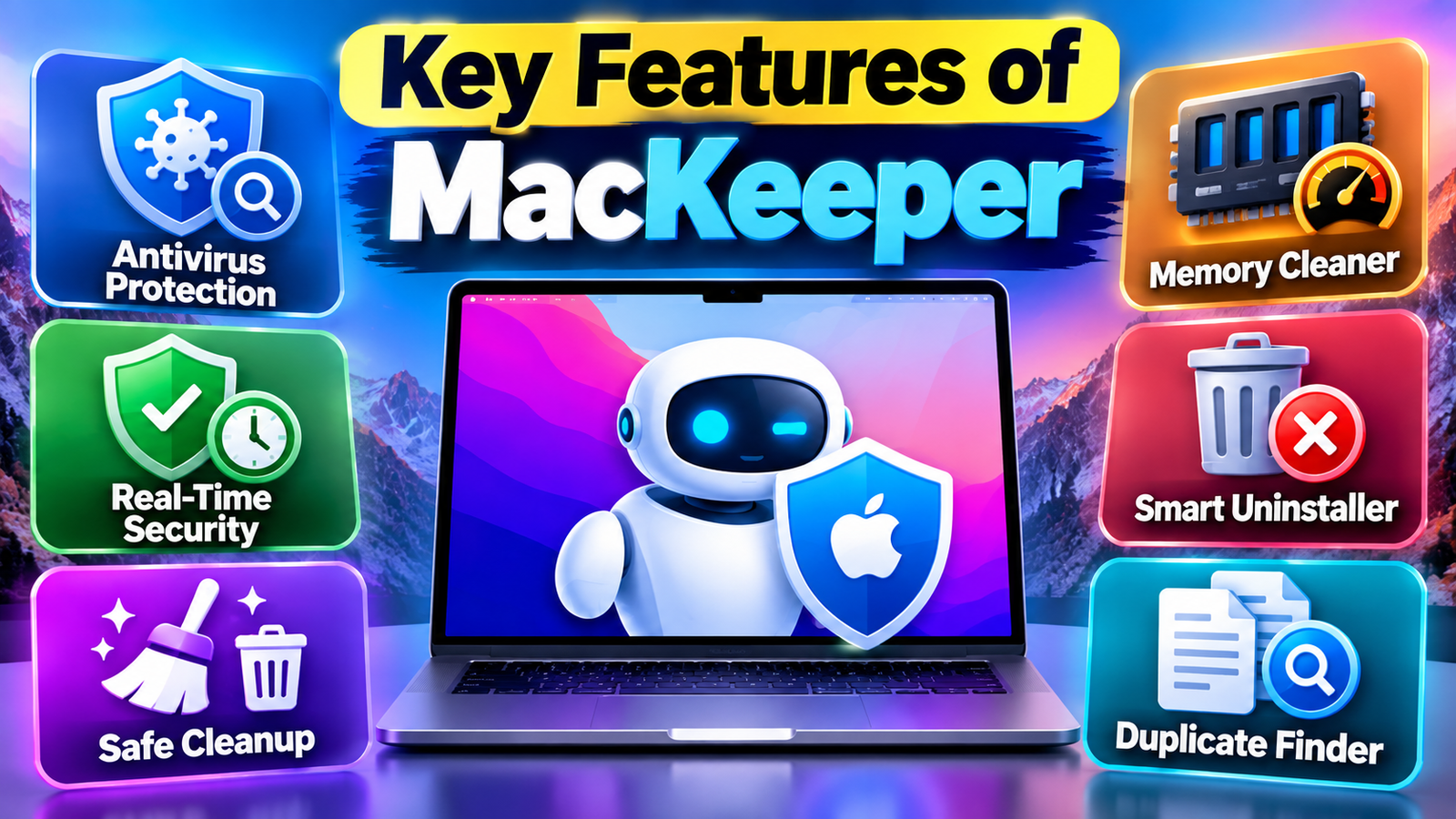
- Antivirus Protection: Scans your Mac for malware, viruses, Trojans, and other potential threats.
- Real-Time Security: Monitors files and activities to help detect suspicious content as it appears.
- Safe Cleanup: Helps identify and remove junk files, caches, logs, and other unnecessary data.
- Memory Cleaner: Helps free up unused memory and manage resource-heavy applications.
- Smart Uninstaller: Removes unwanted applications along with related files.
- Duplicate Finder: Detects duplicate files that may be taking up unnecessary storage space.
Privacy Protection With MacKeeper
Security protects a device from malicious software, while privacy focuses on how personal information is exposed or tracked. MacKeeper includes several features in this area, including ID Theft Guard, StopAd, and VPN Private Connect. These tools address different privacy concerns, from monitoring for exposed personal information to encrypting network traffic.
Having privacy features inside the same application can make them easier to find and activate. For someone who is not familiar with VPN software or breach monitoring, the integrated approach can be convenient. Still, privacy tools have specific purposes, so users should understand what each feature actually does rather than assuming that one application makes every aspect of online activity private.
ID Theft Guard
ID Theft Guard is designed to monitor information such as email addresses and other sensitive personal details for signs of exposure in data breaches. MacKeeper says sensitive information is masked by default during scans, and complete details are provided after ownership of the email address is verified. The company also says information associated with the scan is protected with encryption.
This type of monitoring can be helpful because large data breaches can expose information without the affected person immediately knowing about it. A breach alert does not necessarily mean an account has been hacked at that moment; it means information associated with the monitored data may have appeared in a known breach. If an alert appears, changing affected passwords, enabling multi-factor authentication, and checking account activity are sensible follow-up actions.
VPN Private Connect
MacKeeper’s VPN Private Connect is designed to encrypt internet connections and provide a different IP address while browsing. The company states that its VPN can be configured to connect automatically when the Mac starts. It also says users can access VPN servers in different locations.
A VPN is particularly useful when connecting through networks that users do not fully control, such as public Wi-Fi. Encryption can make it harder for people on the same network to inspect traffic. However, a VPN should not be confused with complete anonymity. The websites a person visits, the accounts they use, browser settings, cookies, and other technologies can still provide information about their activity. MacKeeper says it does not monitor or store data transmitted through its VPN tunnel, while noting that limited usage information may be collected for support purposes with consent.
Mac Optimization Features
Security is only one side of MacKeeper. The application also provides tools designed to improve storage management and system performance. These include Safe Cleanup, Memory Cleaner, Login Items, and Update Tracker. Each tool addresses a different source of clutter or slowdown.
Optimization should not be understood as a magic button that permanently makes every Mac faster. Performance depends on the age of the computer, available RAM, storage capacity, background applications, operating system, and workload. However, removing unnecessary files and applications, reducing unnecessary startup processes, and keeping software updated can make a system easier to manage and may improve the experience in specific situations.
Safe Cleanup
Safe Cleanup is designed to find unnecessary data such as junk files, caches, logs, mail attachments, and other removable items. MacKeeper also provides tools for removing unnecessary applications and duplicate files. Its current cleaning page states that users free an average of 7.5 GB during their first scan, although actual results will vary depending on the individual Mac.
The main advantage of a cleanup tool is convenience. Instead of manually searching through multiple folders, users can review categories of files that may no longer be needed. The important word is review. Users should understand what will be removed before confirming a cleanup, particularly when working with personal files or application data.
Memory Cleaner
Memory Cleaner focuses on RAM rather than storage. MacKeeper explains that RAM is temporary working memory used by applications and processes. Its Memory Cleaner can free resources and stop certain memory-consuming applications, while the company says it does not quit protected system processes.
This feature may be useful when several applications are running at the same time and available memory becomes limited. For example, someone working with a browser containing many tabs, an image editor, and a video application may notice increased memory usage. Cleaning memory can sometimes provide temporary relief, but it cannot replace adding physical RAM where hardware allows it or upgrading an older Mac when the workload exceeds the machine’s capabilities.
Login Items
Applications that automatically launch when macOS starts can increase startup time and consume resources in the background. MacKeeper’s Login Items feature lets users review applications that launch at startup and disable unnecessary entries. The company specifically presents this feature as a way to reduce startup delays and identify applications that launch automatically.
This is one of the simpler optimization techniques because users can immediately see which applications are configured to launch automatically. Not every startup item should be removed, though. Some applications may need background processes for notifications, security, synchronization, or other functions. A careful review is therefore better than disabling everything.
Smart Uninstaller and Duplicate Finder
Uninstalling an application on a Mac can involve more than dragging its main icon into the Trash. Applications may leave configuration files, plugins, extensions, caches, or other related data behind. MacKeeper’s Smart Uninstaller is designed to identify applications and associated leftover files so users can remove unnecessary software more completely.
The Duplicate Finder addresses another common storage problem. Duplicate photographs, documents, downloads, and media files can slowly consume disk space, especially on computers used for creative work. A duplicate-finding tool can make it easier to locate repeated files, but users should always verify the selected items before deletion. Similar-looking files may not always be identical, and automatically removing files without checking can create unnecessary problems.
MacKeeper Dashboard and Find & Fix
One of MacKeeper’s central design ideas is its dashboard. The company describes the dashboard as a place where users can access protection and optimization functions without moving through many separate menus. The Find & Fix feature is intended to provide a broader view of storage, performance, and security issues and suggest actions from one location.
This can be especially helpful for beginners. A user does not necessarily need to understand every technical detail behind caches, startup processes, malware scans, or memory usage before beginning a basic maintenance check. At the same time, experienced users may prefer direct access to individual macOS tools. The value of the dashboard therefore depends partly on whether convenience and central control are priorities.
MacKeeper Performance and System Requirements
As of September 2026, MacKeeper’s website lists macOS 10.15 or later as the system requirement and states that approximately 100 MB of storage is needed for the software itself. The site currently identifies version 7.8 as the latest software version.
The application is therefore aimed at relatively modern Mac systems rather than very old versions of macOS. Before installing any security or optimization utility, users should check compatibility with their current operating system and hardware. It is also useful to remember that security software consumes some system resources of its own. The goal should be a sensible balance between protection, convenience, and performance rather than installing every available optimization tool.
MacKeeper Pricing and Free Trial
MacKeeper offers free access to selected functions and paid plans for its broader feature set. Its current optimization page lists pricing starting at $10.95 per month, while the company’s payment information explains that prices can vary depending on factors such as location, season, and promotional offers. It also states that plans other than the one-month option may involve upfront billing for the selected subscription period.
The free option can be useful for testing selected functions before paying for a subscription. According to MacKeeper’s current product information, free access includes limited uses of functions such as junk removal, memory cleanup, malware scanning, and other tools, while paid access provides broader functionality such as real-time protection, VPN access, and ongoing monitoring.
Feature | MacKeeper Availability |
Junk file cleanup | Free/paid options |
Memory cleanup | Limited free use/paid |
Malware scanning | Available |
Real-time antivirus | Paid |
Adware protection | Available |
VPN | Paid |
ID Theft Guard | Paid/plan dependent |
App updates | Available |
Smart Uninstaller | Available |
Technical support | Paid plans include broader support |
Pricing and included features can change, so users should check the current MacKeeper checkout or pricing page before subscribing. The company’s own payment FAQ specifically recommends checking current pricing because offers can vary by location and season.
Is MacKeeper Worth Using?
Whether MacKeeper is useful depends on what a Mac user actually needs. Someone who wants a single application for antivirus protection, privacy monitoring, storage cleanup, memory management, startup control, and application updates may appreciate the convenience. Users who already understand macOS maintenance and prefer Apple’s built-in tools may find that they need fewer third-party utilities. The key difference is often convenience rather than the basic ability to perform every individual task.
MacKeeper is best viewed as a centralized maintenance and security toolkit, not as a replacement for responsible computer use. Its security features can provide additional protection, while its cleanup and optimization tools can make routine maintenance easier. Its privacy functions add another layer for people who want breach monitoring, ad blocking, and VPN access. The company also provides 24/7 technical support as part of its broader service offering.
Why Mac Maintenance Matters
A Mac can gradually collect unnecessary files, outdated applications, browser data, and background processes during regular use. While these issues may not always cause major problems, they can make storage management more difficult and affect the overall user experience. Regular maintenance helps users identify what is consuming storage and which applications are running unnecessarily. Tools such as cleanup utilities and startup managers can make these tasks easier, especially for users who prefer a simple interface.
Security maintenance is equally important. New malware and security vulnerabilities appear over time, so keeping macOS and installed applications updated is an important part of protecting personal data. Using antivirus protection alongside Apple’s built-in security features can provide an additional layer of monitoring. Good maintenance should therefore combine security, storage management, software updates, privacy, and responsible browsing habits.
How to Use MacKeeper Effectively
Getting the most from MacKeeper does not mean running every tool constantly. A better approach is to use each feature when there is a clear reason for it. For example, Safe Cleanup can be used when storage space becomes limited, while Login Items can be reviewed when too many applications open during startup.
A practical maintenance routine can include these steps:
- Run a security scan to check for potential threats.
- Review unnecessary files before performing a cleanup.
- Check startup applications and disable items that are not needed.
- Look for outdated applications and install trusted updates.
- Review duplicate files before deleting anything.
- Check privacy alerts and take action if personal information has been exposed.
- Use the VPN when additional network privacy is needed.
The important point is to review recommendations before making changes. Cleaning software can identify potentially unnecessary files, but users should confirm that those files are safe to remove.
Also Read
A Complete Guide to Understanding Bonus Offers and Benefits
How Liveit.se Can Help You Find Your Next Live Experience
How Modern Shoppers Can Discover New Fashion Trends With ABIBY
Why Online Shoppers Continue to Explore AliExpress for Affordable Products
Why Travelers Continue to Love the Peaceful Appeal of the Shore
MacKeeper for Different Types of Users
MacKeeper can serve different purposes depending on the type of Mac user. A student may find cleanup and storage tools useful when working with documents, presentations, downloads, and media files. A professional who frequently installs applications may benefit from malware protection, software-update monitoring, and application management.
Creative users who work with large images, videos, or audio files may find duplicate-file detection and storage cleanup particularly useful. Meanwhile, users who frequently connect to public Wi-Fi may be interested in the VPN feature. This makes MacKeeper more of a multi-purpose Mac maintenance suite than a tool focused on only one task.
Things to Consider Before Installing MacKeeper
Before installing any third-party Mac utility, users should consider what they actually need. macOS already includes several security and maintenance features, so paying for additional software may not be necessary for every user. It is also important to review the current subscription price, supported macOS versions, included features, and renewal terms before purchasing.
Users should also avoid treating optimization software as a guaranteed performance solution. If a Mac has an aging processor, insufficient hardware resources, or a failing storage device, cleaning software cannot solve the underlying hardware limitation. In such situations, diagnosing the actual cause of the slowdown is more useful than repeatedly running optimization scans.
Conclusion
MacKeeper combines several useful Mac maintenance functions into one application, covering security, privacy, cleaning, and performance optimization. Its antivirus provides malware scanning and real-time protection, while StopAd and ID Theft Guard focus on advertising, tracking, and exposed personal information. The VPN adds encrypted connectivity, while tools such as Safe Cleanup, Memory Cleaner, Login Items, Update Tracker, Smart Uninstaller, and Duplicate Finder focus on keeping the Mac organized and easier to manage.
The biggest advantage is the centralized experience. Instead of using different applications for different maintenance tasks, users can access many functions through one dashboard. At the same time, no optimization application can guarantee a faster computer in every situation, and security tools work best alongside safe browsing, regular backups, strong passwords, multi-factor authentication, and timely software updates.
For Mac users looking for an all-in-one tool, MacKeeper provides a broad collection of features worth examining. The right choice ultimately depends on the user’s Mac, technical knowledge, security requirements, preferred maintenance routine, and willingness to pay for an integrated service.
Frequently Asked Questions
MacKeeper is designed as a security, privacy, cleaning, and optimization application for Mac computers. The company states that its current software is Apple-notarized and that its antivirus has received AV-TEST certification. Apple notarization means Apple's automated process checks software for malicious components; it should not be confused with Apple's App Store review process.
MacKeeper includes tools that can potentially help with specific performance problems. Memory Cleaner can free memory resources, Login Items can reduce unnecessary startup processes, and Safe Cleanup can remove unnecessary files. The actual improvement depends on the condition and workload of the individual Mac, so performance gains should not be expected to be identical for every user.
Yes. MacKeeper includes an antivirus tool designed to scan for malware and other threats. Its real-time protection can check files as they are opened and alert users when malicious content is detected.
Yes. MacKeeper includes VPN Private Connect, which is designed to encrypt internet connections and change the visible IP address. Users can also configure the VPN to connect automatically when their Mac starts.
MacKeeper currently lists pricing starting at $10.95 per month, but prices can vary according to location, promotions, and subscription duration. The company recommends checking the current price before purchasing because offers can change.
Table of Contents
Related Post



Smart Holiday Planning Tips for Travelers Using Pierre et Vacances
admin
September 23, 2026
Read More »

Understanding the Technology Behind Popular Olympus Imaging Products
admin
September 22, 2026
Read More »